
Managing inventory that goes on rent — whether it’s construction shuttering materials, machinery, scaffolding items, or reusable tools — requires precision in tracking quantities, rental pricing, billing periods, returns, and damage/loss charges.
The Rent Addon for Busy Accounting Software solves this challenge by enabling businesses to:
- Configure item-wise rental prices
- Issue and receive material from parties
- Auto-calculate rent on return
- Generate rental bills with reference-wise details
- Maintain full tracking of pending challans and damage/loss stock
Whether you’re running a construction supply, event equipment rental, or industrial materials business, this addon brings unmatched control and automation to your Busy system.
⚙️ Step 1: Rent Configuration Setup
To begin using the Rent Addon:
- Open your company in Busy Software
- Go to Addons → Rent Configuration
Configuration Window Options:
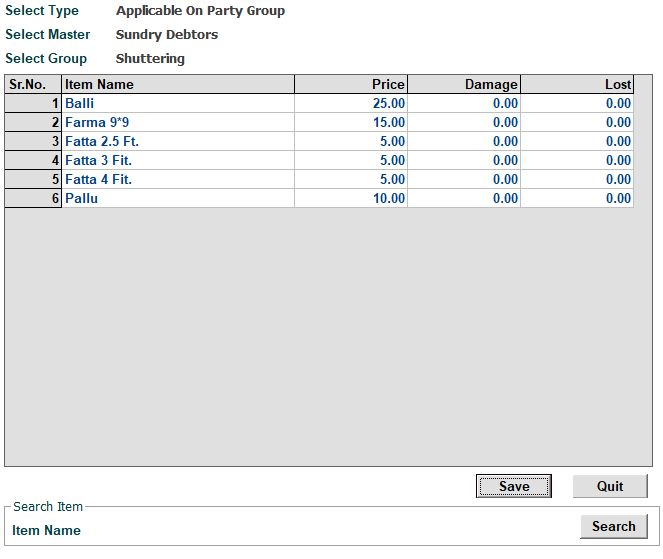
- Select Type:
- Applicable on Party – Apply rental pricing to individual parties
- Applicable on Party Group – Apply rental pricing to entire party groups like Sundry Debtors
- Select Master:
- Choose the relevant ledger or group (e.g., Sundry Debtors)
- Select Group:
- Choose the Item Group (e.g., Shuttering) that contains items given on rent
Once an item group is selected, a grid displays all items with the following editable fields:
- Price: Per-day rent amount
- Damage: Charge per unit for damaged items
- Lost: Charge per unit for lost items
💾 Click Save to finalize configuration.
This ensures each item has a rental rate tied to the selected party or party group.
📦 Step 2: Material Issue – Delivering Rental Items to Party
To issue items on rent:
- Go to Transactions → Material Issue to Party
- Click Add Voucher
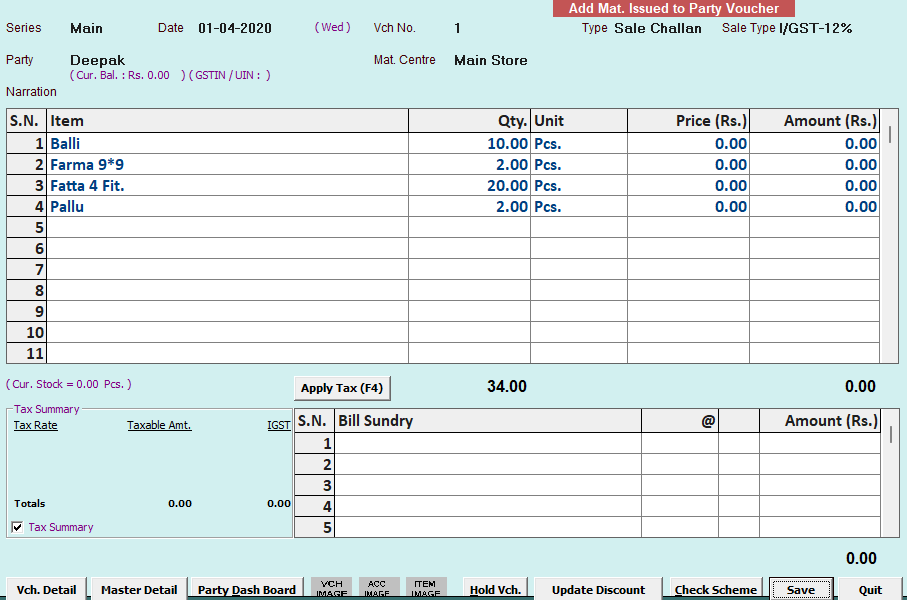
Fill in:
- Series (e.g., Main)
- Date of issue (e.g., 01-04-2020)
- Party Name (the customer renting the items)
- Material Centre (e.g., Main Store)
Item Grid:
Select rental items (e.g., Balli, Fatta, Farma) and enter the Qty. being issued.
💾 Save the voucher.
This entry records how many units of each item were issued and will be used to track return and rent billing.
📥 Step 3: Material Receive – Return from Party
Once items are returned:
- Go to Transactions → Material Receive from Party
- Click Add Voucher
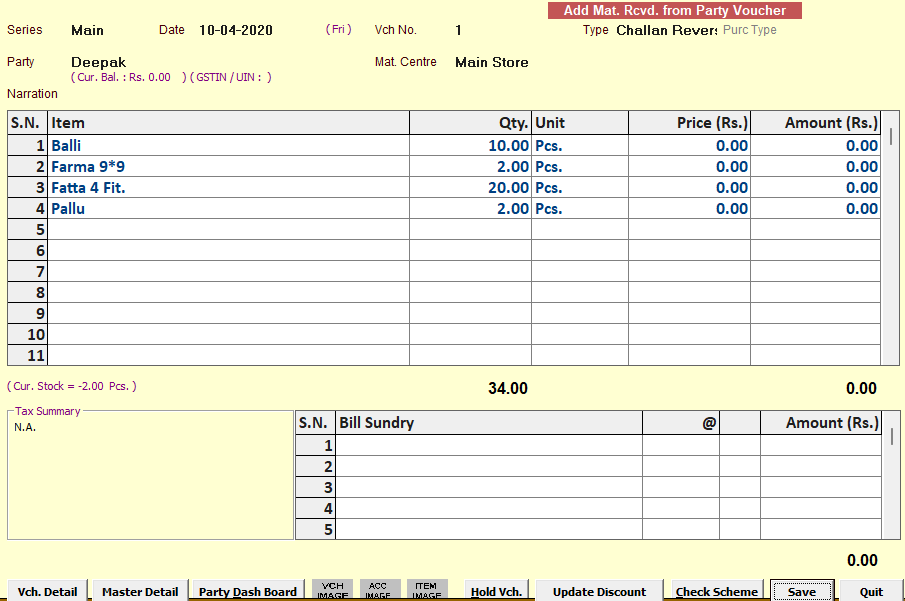
Fill in:
- Series (same as issue series)
- Date of return (e.g., 10-04-2020)
- Party Name (same customer)
- Material Centre
In the grid:
- Select returned items
- Enter the Qty. received for each
On clicking Save, the system auto-launches the Adjustment Window where:
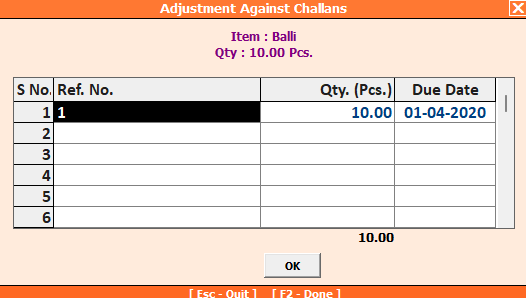
- Each issued item is matched against its return
- You reference the original challan/voucher
- Balance (unreturned) is automatically calculated
🧮 Step 4: Rent Calculation via Sale Voucher
To calculate and bill rent for the items:
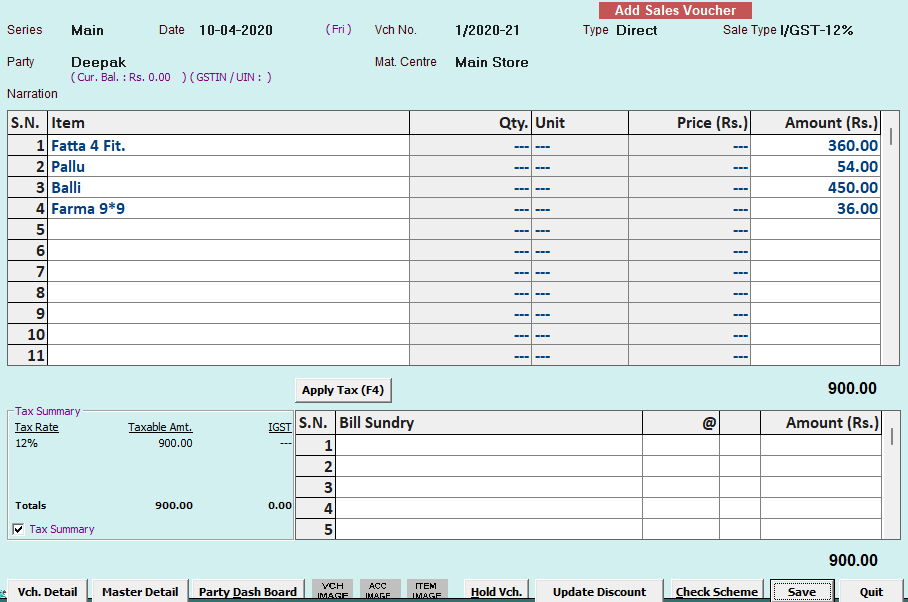
- Go to Sale Voucher
- Click Add
- Select:
- Series
- Date (e.g., 10-04-2020)
- Party Name
Rent Calculation Trigger:
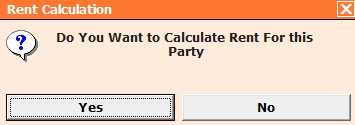
While on the item grid, press Alt + R.
A pop-up appears:
“Do you want to calculate rent for this party?”
Choose Yes.
The system:
- Auto-fetches the items issued and returned within the selected period
- Calculates rent based on:
- Number of days
- Issued quantity
- Return date
- Price defined in configuration
Output:
- Items are auto-inserted into the Sale Voucher
- Amount is auto-calculated
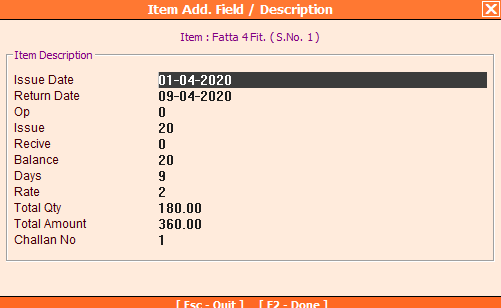
- In the Item Description, the system shows:
- Issue Date
- Return Date
- Total Days
- Rate
- Quantity
- Calculated Amount
- Reference Challan Number
💾 Save the sale voucher to generate the rent invoice.
📄 Example Rent Calculation:
Item: Fatta 4 Fit.
Issue Date: 01-04-2020
Return Date: 09-04-2020
Days: 9
Qty Issued: 20
Rate/Day: ₹2
Total Rent: ₹360
This detail is saved in the system and also printed on the invoice.
📊 Step 5: View Pending Rent & Challan Status
To track items still pending return or not billed:
- Go to Display → Challan Processing → Pending Challan Report
Here, you can see:
- Challan-wise outstanding materials
- Qty. not yet returned
This ensures zero revenue leakage and gives you clarity on which parties owe what.
✅ Key Benefits of the Rent Addon for Busy
The Rent Addon for Busy Software isn’t limited to construction or shuttering use — it supports a wide variety of rental industries by offering flexible item-wise tracking, billing, and return reconciliation.
🔍 Top Advantages:
- 🔁 Multi-Industry Rental Support – Whether you rent out cars, party tents, power tools, or formal wear, this addon supports any item with a rental model.
- 📅 Auto Rent Calculation – Calculates item-wise rent based on issue/return date, quantity, and pre-set pricing.
- 💼 Real-Time Ledger Updates – Rent invoices are auto-posted to the customer’s ledger with complete reference tracking.
- 🧾 Detailed Billing with Challan References – Rent bills include breakdowns by days, items, rate, quantity, and challan numbers.
- 🔐 Reference-Based Inventory Control – Track what’s issued, returned, or pending for each client and item.
- 🧮 Customizable Damage/Lost Charges – Add extra charges automatically for unreturned, damaged, or missing items.
- 📊 Pending Rental Reports – View unreturned item reports, party-wise dues, and pending challan summaries.
🧰 Ideal For Rental-Based Businesses in Every Industry
The Rent Addon is perfect for companies offering:
- Vehicles: Car rental agencies, scooter and bike rentals, logistics companies renting trucks or RVs.
- Accommodation: Tent rentals, vacation property management, or camping space leasing.
- Event Spaces & Equipment: Rental of tables, chairs, lighting, speakers, tents, stages, projectors, party bounce houses, and décor.
- General Equipment: Power tools, welding machines, ladders, generators, compressors, and construction tools.
- Audio/Visual & Photography: Camera equipment, tripods, lighting rigs, speakers, and projectors.
- Medical Equipment: Wheelchairs, oxygen concentrators, hospital beds, surgical tools on temporary usage.
- Clothing & Costumes: Wedding dresses, suits, uniforms, costumes for plays or functions, subscription-based fashion.
- Furniture & Electronics: TV, refrigerators, washing machines, beds, desks, kitchenware, or home décor.
- Sports & Outdoor: Camping gear, skiing kits, trekking equipment, bicycles, or kayaks.
- Pet & Office Supplies: Pet crates, office furniture, and tech accessories.
📦 Any item that is issued temporarily and returned later can be perfectly managed with this addon.
🧠 Pro Tips for Efficient Use
- 🧾 Use Matching Series: Keep the same voucher series for issuing, returning, and billing to ensure smooth referencing and accurate rent tracking.
- 📊 Set Item Rates Carefully: Define price, damage, and lost charges clearly in Rent Configuration for each item category.
- 🔎 Regularly Monitor Pending Reports: Use the Pending Challan Report to stay on top of outstanding returns and missed billing opportunities.
- 💰 Apply Seasonal Pricing: Update rental pricing during high-demand seasons like weddings, festivals, or holidays for maximized profits.
- 🔒 Take Security Deposits: Use the Advance Receipt feature for deposits and adjust against final billing on return.
📞 Get Started Today
Streamline your rental operations and eliminate manual billing errors with the Rent Addon for Busy Accounting Software.
💬 Want to See a Live Demo?
📧 Email us: contact@busyplugin.com
📞 Helpline: +91 70828 24212
🌐 Website: www.busyplugin.com
From scaffolding to sound systems — manage your rentals the smart way.
🔘 Download Setup
Please click the button below to download the setup file for installation.
Disclaimer: Busy Accounting Software are trademarks of their respective owners. This Rent Addon is a third-party customization created to enhance the inventory and rental features of Busy Software .